
.svg)


How do I bring my number to Warehouse Mobile?
You can keep your current New Zealand mobile number when you join Warehouse Mobile, even the 021 or 027 bit. It’s free and only takes a few hours for us to get you up and running.
There are two easy ways to bring your number: online and our app.
Whichever way you choose, you’ll need your active Warehouse Mobile SIM card as well as your old account number (if you were on a monthly plan), or SIM number (if you were on a prepaid plan).
Things to know before you bring your number to Warehouse Mobile:
- Number transfers usually take up to 24 hours.
- You’ll need to be the authorised account holder (or have it transferred to your name first).
- Still in contract? You might need to pay early exit fees so make sure to check with your previous provider.
- Your number needs to be active with your current provider for the transfer to work.
- Don’t forget to back up and save your contacts and any SIM stored info to your phone or the cloud so nothing gets lost when you make the switch.
Need help finding your SIM card number? Learn more here.
Once you’re ready:
- Simply go to the Warehouse Mobile and register using the temporary 028 number on your new SIM.
How to bring your number in the app or online
1. Log in to your account
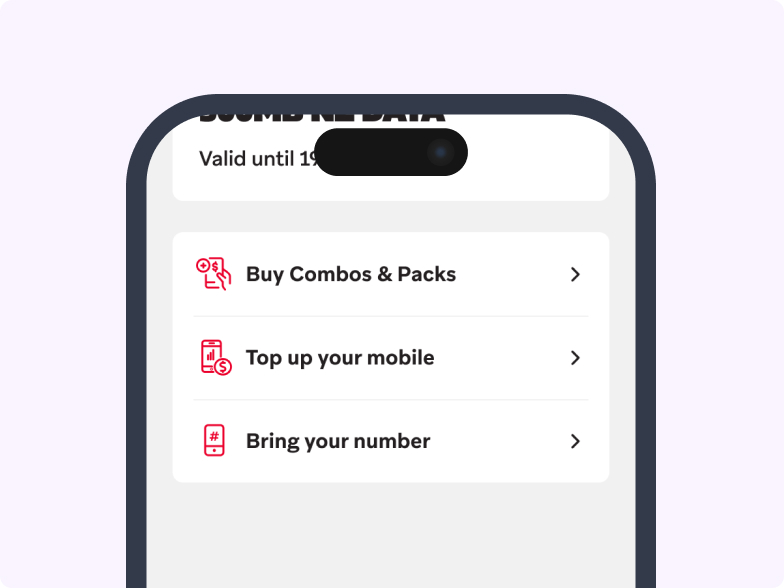
On the Warehouse Mobile app:
- Log in to the app.
- Scroll to the bottom and tap on “Bring your number”.
Online:
- Log in to your account.
- Click on Settings at the top navigation.
- Click on the ‘Bring your number’ tab.
2. Enter your old account details or your SIM serial number
- If you’re bringing your number in the app, your Warehouse Mobile details should be pre-filled, double check these are correct.
- Enter the details of the provider you’re leaving.
3. Start the transfer
- Read and accept the Terms and Conditions.
- Select "Bring my number".
4. Confirm by SMS
- After you submit your transfer request, you should get a text message from NZ Telecommunication Forum (TCF) to confirm your request to move your mobile number.
- Make sure your old SIM/eSIM from your previous provider is in your phone.
- Reply ‘YES’ to the text from 2542 (NZ Telecommunications Forum) within 2 hours.
- After replying, you can swap back to your Warehouse Mobile SIM.
Mobile port confirmation text
To move your number to Warehouse Mobile, reply YES to the confirmation text sent by the NZ Telecommunications Forum (TCF) from 2542. It will go to your previous provider’s SIM, so make sure your old SIM is still in your phone.
Whether you reply YES or NO, you will then receive a text message to confirm either response.
The mobile confirmation text may take up to 48 hours. It will be sent between 8am to 5pm during working days.
Note: In some cases, you may not receive a text if there are other approvals still needed, such as with large business number transfers.
What happens after you start the number transfer?
- You will receive a confirmation text with a reference number
- Keep this reference number handy if you need support
- Once approved, the changeover usually takes 2 to 24 hours during 8am to 6pm
- We will text you when the change is complete
- Requests made after 5.45pm will be processed from 8am the next day
FAQs
How long will it take to bring my number to warehouse mobile?

- Once your request is approved, the changeover usually takes between 2 and 24 hours. Doing it online is often the quickest way.
- Check your details carefully before submitting, as incorrect info can slow things down. Timing can vary because we need to work with your previous provider.
- We will text you once the change is complete. Make sure your Warehouse Mobile SIM is in your phone, or pop it in every few hours to check.
Will my credit or balance from my old provider carry over?
I've transferred my number to Warehouse mobile but i'm still getting a bill from my old phone company?
I'm having issues with imessage or RCs after bringing my number?
- Check that your number transfer is complete (this can take up to 24 hours)
- Allow up to 48 hours after your number transfer for all services to activate.
- Turn Airplane Mode on for 10 seconds, then turn it off again.
Try these steps on your iPhone:
- Go to Settings > Messages > Send & Receive and check that your transferred mobile number is selected.
- Turn iMessage and FaceTime off, then back on.
- Sign out of iMessage and sign back in again.
- Check that your phone's Date & Time, My Number, and Send as SMS settings are correct.
Try these steps on your Android device:
- Go to Settings > Apps > Messages > Storage & cache.
- Select Clear cache, then Clear data.
- Reopen the Messages app and sign in again if prompted.
- Check that your transferred mobile number is being used for RCS chats.
.svg)
.svg)
